 CrackMac
CrackMac / Free trial
Your free trial, and how to open it
Click below to download CrackMac. It's a 4 MB disk image, the full app for 30 minutes of use.
Opening it takes about a minute. One step, a warning from macOS, looks more alarming than it is, so here's exactly what you'll see and what to click.
-
Open the download and drag CrackMac into Applications
Open your Downloads folder, or click the download in your browser, and double-click CrackMac-Trial.dmg. A window opens. Drag the CrackMac icon onto the Applications folder next to it.
-
Open CrackMac, and click Done on the warning
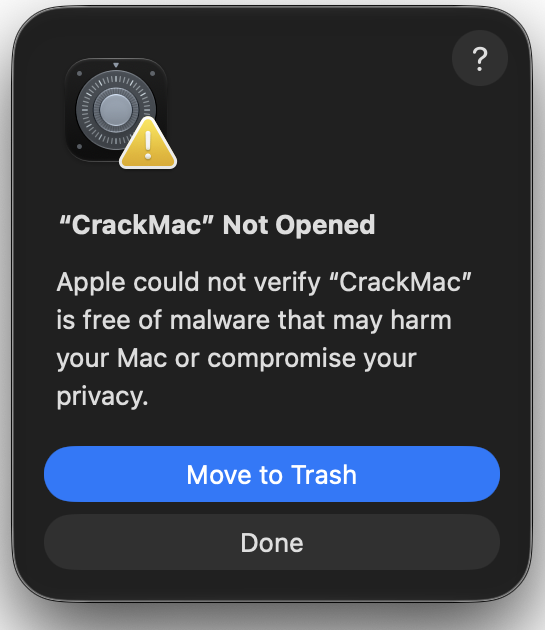
Open CrackMac from your Applications folder. macOS shows this message. Click Done. On macOS 13 and 14 the button says Cancel. Don't click Move to Trash. The app stays where it is, and macOS remembers you tried to open it.
-
Click Open Anyway in System Settings
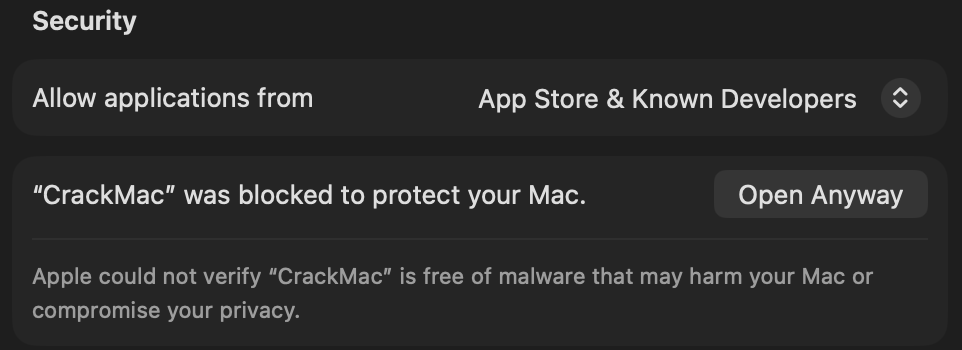
Open System Settings, choose Privacy & Security, and scroll down to the Security section. You'll see a line about CrackMac. Click Open Anyway, enter your Mac's password, and click Open on the last message. macOS won't ask again.
-
Turn on Accessibility
CrackMac asks for Accessibility access, which is how it moves windows, reads menus and keeps the pointer on the working part of your screen. It opens the right settings page for you. Switch CrackMac on.

-
Draw your dead zone
CrackMac opens its settings with a picture of your screen. Drag the edges in until they line up with where your screen stops working. That's it. The 30 minutes only count while CrackMac is actually running with access granted, so setting up is free.
Is the warning something to worry about?
No. The warning is about paperwork, not about what the app does. macOS checks whether an app downloaded from a website has been notarised, which means its developer has joined Apple's paid developer programme and submitted the app for an automated check. CrackMac hasn't done that yet, so macOS can't vouch for it either way, and it shows the same message for every app in that position.
What CrackMac does and doesn't do:
- It uses Accessibility access to move windows, read menu items and hold the pointer inside the working area. That's the same permission window managers like Rectangle use.
- It doesn't record your screen, read your files or ask for Screen Recording access.
- The trial sends one thing over the internet, an anonymous one-way fingerprint of your Mac, to count its 30 minutes. Details are in the privacy policy.
- It's made by Crackmac LLC. Questions go to support@crackmac.lol, and a person answers.
Stuck on a step?
- No Open Anyway button. It only appears after you've tried to open CrackMac once. Open it from Applications, click Done, then look again. It stays there for about an hour.
- Right-click and Open doesn't work. From macOS 15 on, Open Anyway in System Settings is the only way.
- Only black bars appear, windows don't move. Accessibility isn't on yet. See step 4.
- The trial says it's waiting for a connection. It needs internet access to count its minutes.
Changed your mind?
Drag CrackMac from Applications to the Bin, then remove it from System Settings, Privacy & Security, Accessibility with the minus button. Nothing else is left behind.
Want to know more first? See how CrackMac works or try the screen test to check where your screen is damaged.