 CrackMac
Can you replace a MacBook screen yourself? A complete DIY guide
Yes, you can replace a MacBook screen yourself. On MacBooks from 2018 onward the usual DIY route is to swap the complete display assembly: lid, screen and hinges in one part. iFixit rates it moderate and 30 to 60 minutes for the M1 MacBook Air. A new assembly costs about $215 to $360 for an Air, roughly half of Apple's price without AppleCare+. Replacing only the LCD panel is cheaper in parts but far harder.
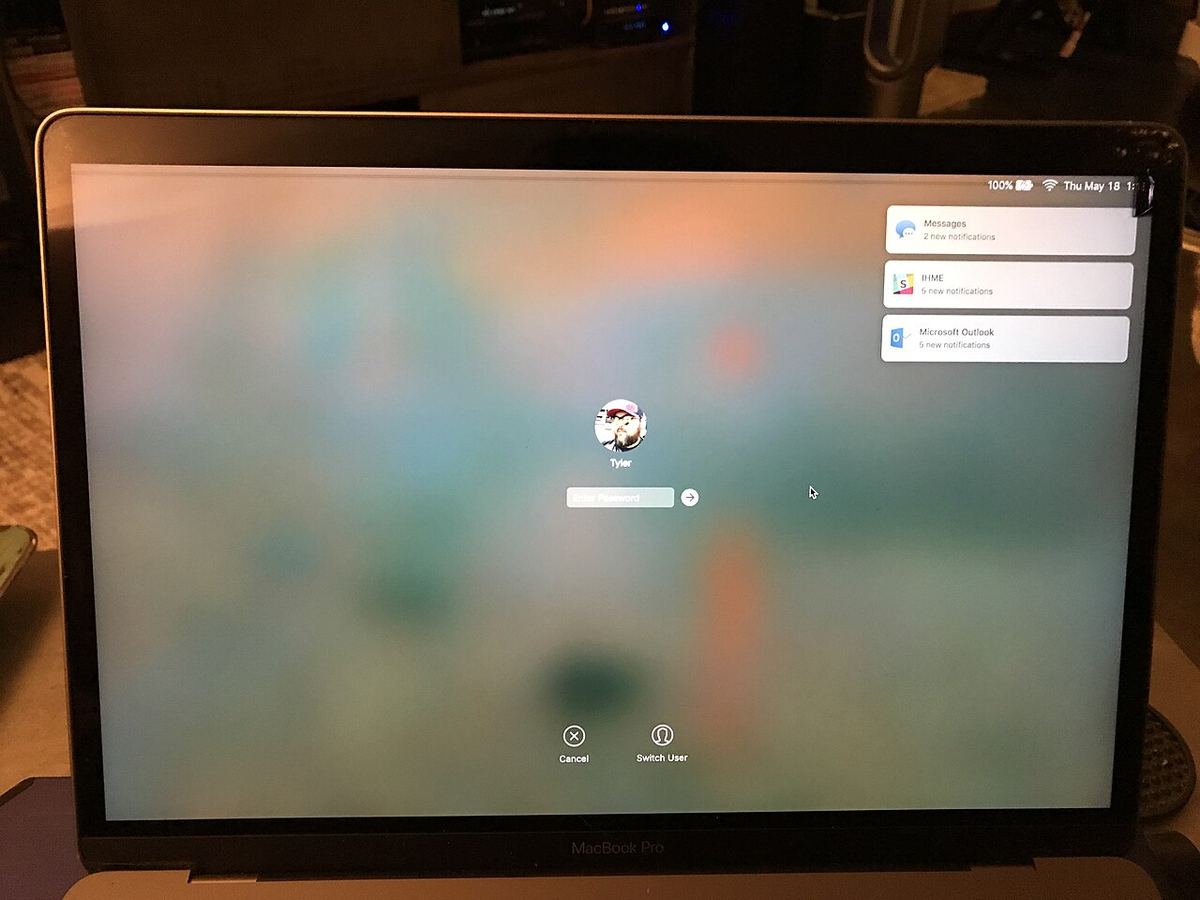
Two ways to do it
| Full display assembly | LCD panel only | |
|---|---|---|
| What you replace | Lid, screen, hinges, cables, camera | Just the glass panel inside the lid |
| Difficulty | Moderate | Hard: heat, glue, a fragile panel |
| Time | 30 to 60 minutes | 1 to 3 hours, more the first time |
| Part cost, M1 Air | $215 to $357 new, $149 to $175 used | $189 to $223 |
| Main risk | Torn cables or a missed screw | Cracking the new panel |
| Best for | Most people | Repair shops and the experienced |
For a first repair, choose the full assembly. The LCD-only route is explained here.
What it costs to do it yourself
| Model | New full assembly, eBay | LCD panel only, eBay | Apple's genuine part |
|---|---|---|---|
| MacBook Air M1, A2337 | $215 to $357 | $189 to $223 | $395 |
| MacBook Air M2, A2681 | $279 to $346 | $178 to $241 | $483 |
| MacBook Air M3, A3113 | $229 to $356 | $178 to $241, same panel as M2 | $483 |
| MacBook Pro 13-inch, A2338 | $238 to $296 | rarely sold | $527 |
| MacBook Pro 14-inch, A2442 and later | $598 to $660 | not practical | $659 |
eBay buy-it-now listings for new parts, checked 15 October 2026. Used genuine assemblies sell for less, for example $149 to $175 for an A2337. Apple's price is from its Self Service Repair store, before the $88 credit for returning the old part.
Add $20 to $40 for a screwdriver set if you don't own one. Compare with Apple: $99 with AppleCare+, or the part plus labour without it. See Apple's prices for your model.
Tools you need
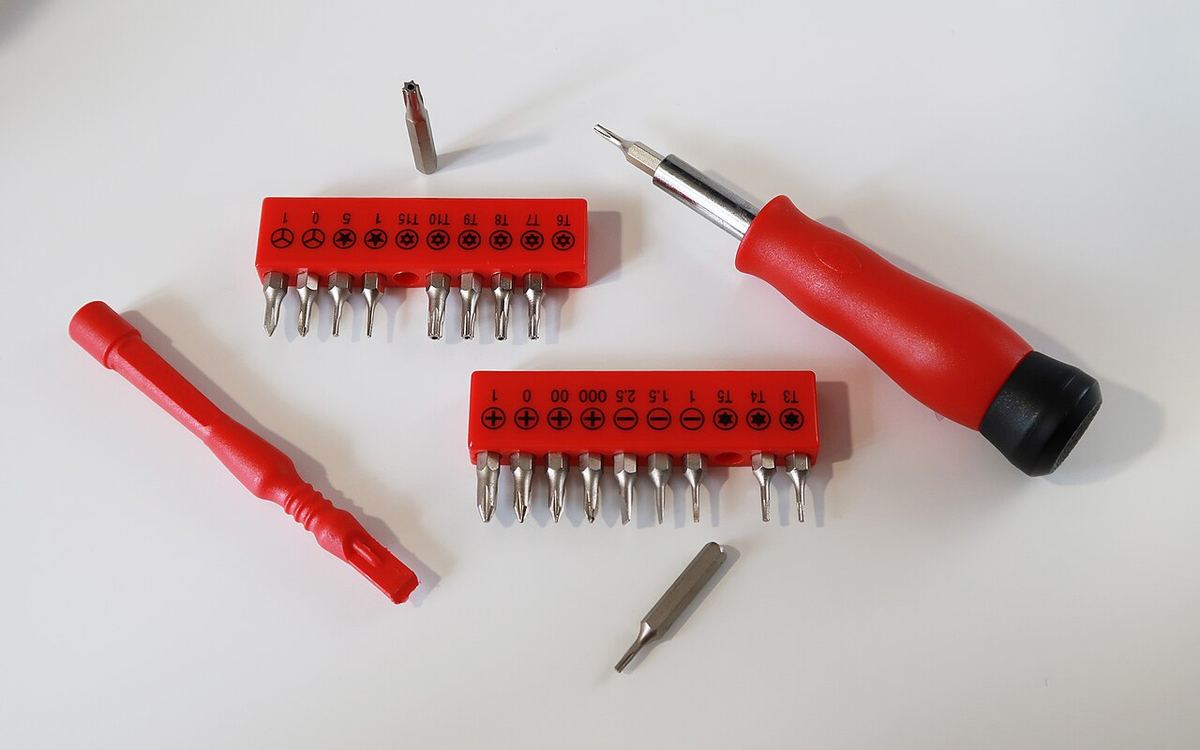
- P5 pentalobe screwdriver, for the bottom case.
- Torx T3, T5 and T8 drivers, for covers and hinges. The M1 Air guide also lists T4 and a TR8 security bit.
- A plastic spudger and tweezers.
- A magnetic mat or a sheet of paper to lay out screws in order.
Most precision kits sold for phone and laptop repair include all of these.
How it's done
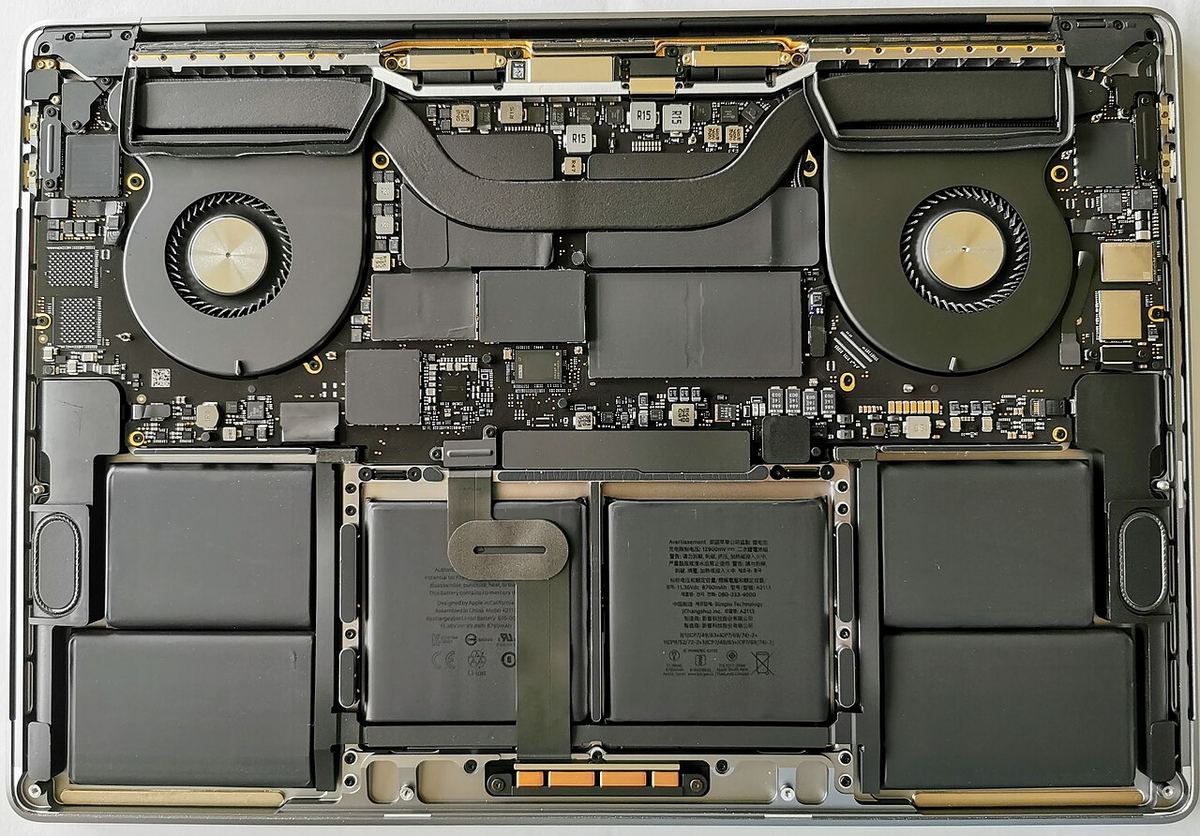
On an M1 MacBook Air, following iFixit's guide:
- Turn off Auto Boot so the Mac doesn't power on when opened, shut down and unplug.
- Remove the P5 screws and lift off the bottom case.
- Disconnect the battery straight away. Lift the metal locking arm before pulling the connector.
- Remove the antenna cable cover and the display cable cover, and unplug both cables straight up.
- Remove the antenna bar, which is held by T5 screws and some adhesive.
- Remove the hinge screws, T8, open the lid fully and slide the display out.
- Fit the new display and reverse the steps. Press each side of the display connector until it clicks, never the middle.
The full guide with photos is free on iFixit: MacBook Air 13-inch Late 2020 screen replacement. Other models: M2 MacBook Air and 14-inch MacBook Pro.

Macbook Air M1 2020 Space Grey Screen Replacement A2337. Video by UberGeeks on YouTube, 17 minutes. It loads from YouTube when you press play.

2021 M1 Macbook Pro 14 inch Screen Replacement Step by Step. Video by UberGeeks on YouTube, 31 minutes. It loads from YouTube when you press play.
How hard is it, honestly?
- The screws are tiny, and several lengths look alike. Keep them in order.
- Connectors are fragile. Antenna cables and the display connector bend if you pull at an angle.
- The battery stays connected unless you unplug it. A short can damage the logic board.
- Colour and fit. Order the exact model number and colour. Aftermarket lids can differ slightly in shade.
- True Tone and calibration. iFixit warns that on the 14-inch MacBook Pro, non-Apple screens can lose True Tone or show artifacts without Apple's System Configuration. Apple's Self Service Repair includes that step.
If you can build flat-pack furniture and follow photos carefully, the full assembly swap is within reach. If any step makes you nervous, a shop does it in under an hour.
Where to buy the part
Apple, iFixit, eBay, Amazon and AliExpress all sell MacBook screens, at very different prices and quality. Here's how to choose, and what to avoid. For the most common model, see MacBook Air M1 screen replacement.
If you'd rather not do it
- AppleCare+: $99 at Apple. Check your coverage first.
- A repair shop: usually 20 to 35 percent below Apple.
- Damage only along one edge: you can keep using the rest of the screen with CrackMac, no tools needed.
If the damage runs along one edge, CrackMac can keep windows, menus and the pointer off it. There's a free 30-minute trial.
Quick answers
Can you replace a MacBook screen yourself?
Yes. On MacBooks from 2018 onward, swapping the complete display assembly is a moderate job of 30 to 60 minutes with P5 pentalobe and Torx screwdrivers, according to iFixit's guide for the M1 MacBook Air. Replacing only the LCD panel is much harder.
How much does it cost to replace a MacBook screen yourself?
For a MacBook Air, a new complete display assembly costs about $215 to $360 online, or about $150 to $175 used, plus $20 to $40 for tools. A 14-inch MacBook Pro assembly costs about $600 to $660.
Will a replacement screen keep True Tone?
Not always. iFixit warns that on the 14-inch MacBook Pro, non-Apple replacement screens can lose True Tone or show artifacts unless Apple's System Configuration is run, which Apple's Self Service Repair parts include.
Is it worth replacing a MacBook screen yourself?
Often, yes: it saves roughly half compared with Apple without AppleCare+. It's less worth it with AppleCare+, where Apple charges $99, or on an older Mac worth less than the part.
Rather not open your Mac?

If the damage runs along one edge, you may not need a new screen at all. CrackMac keeps windows, the menu bar and the pointer on the part that still works and paints the damage black. Free for 30 minutes, then a one-time price.
- Works on macOS 13 or later, Apple silicon and Intel.
- Free for 30 minutes of use, then a one-time price. No subscription.
- A refund within 7 days, no questions asked.